
Download Fergo Screenshot – Free, Secure Screen Capture Tool for Windows & Mac
Looking for a lightweight, fast, and completely free screen capturing tool? Fergo Screenshot is your ideal solution. Whether you're a student, professional, or casual user, this powerful yet simple software makes capturing your screen effortless.
With support for full-screen, active window, and custom area captures, Fergo Screenshot delivers precision and convenience in one compact package. The app runs silently in the background, offers customizable hotkeys, and even supports automatic screenshot capture at set intervals. All captured images are automatically renamed for better organization.
Best of all, Fergo Screenshot is 100% free—no ads, no trial versions, no hidden fees. Available for both Windows and Mac, this reliable tool ensures a smooth experience across platforms. Download Fergo Screenshot today and simplify your workflow with a secure, efficient, and user-friendly screen capture app.
Key Features of Fergo Screenshot
Fergo Screenshot stands out in the crowded market of screen capture tools thanks to its smart design and powerful functionality. At its core, the app supports three primary capture modes: full screen, active window, and user-defined area. This flexibility means you can quickly capture everything on your monitor, just a single application window, or a specific section of your screen—perfect for tutorials, documentation, or sharing content.
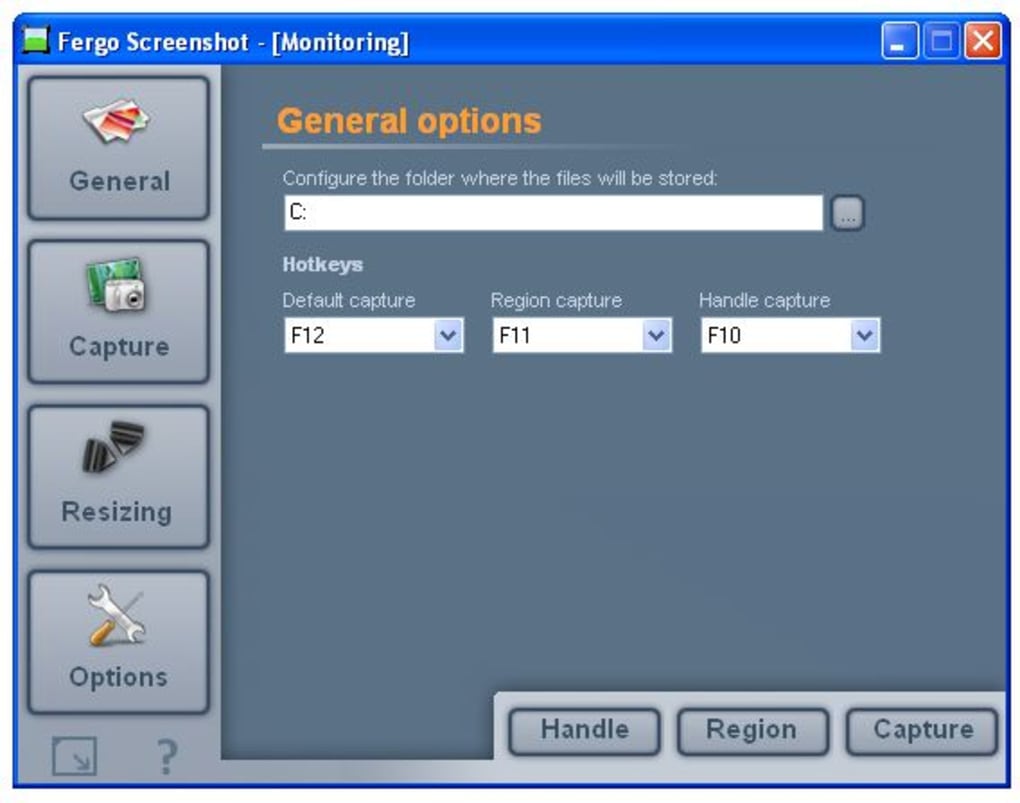
One of the standout features is the ability to assign custom hotkeys to each capture mode. Whether you use Ctrl+Shift+1 for full-screen captures or Ctrl+Shift+2 for window captures, you can tailor the experience to your workflow. This eliminates the need to navigate through menus every time you need a screenshot.
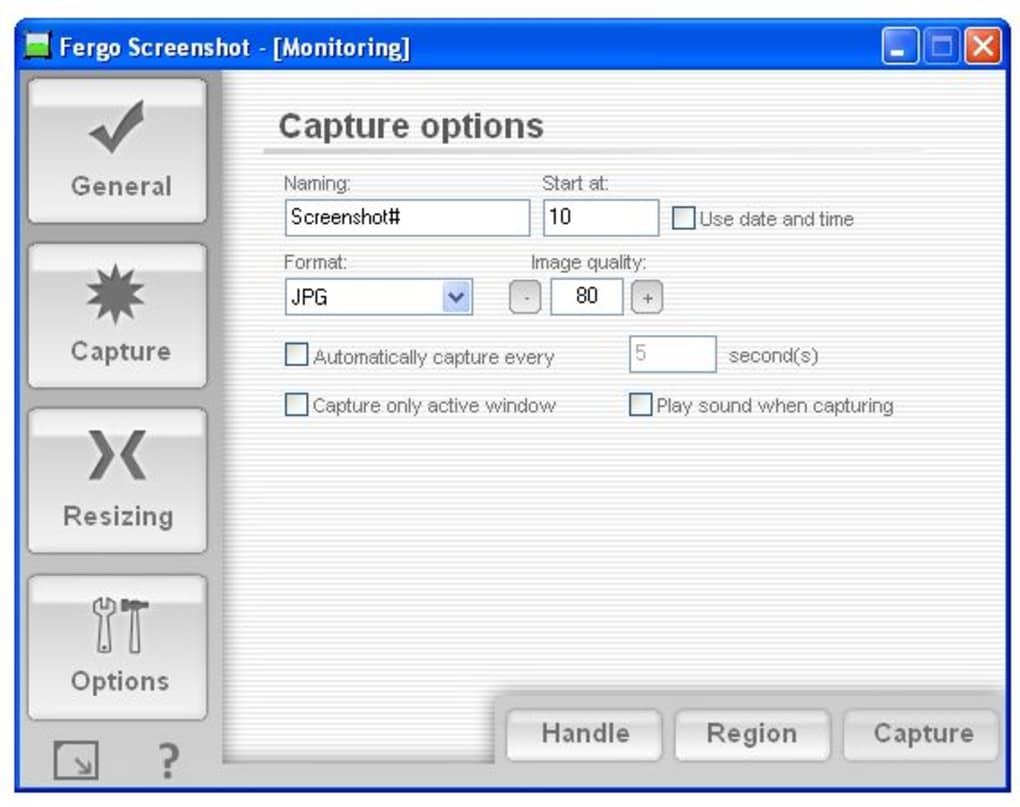
For those who need automated captures, Fergo Screenshot includes a built-in timer function. You can set the app to take screenshots automatically every few seconds—ideal for time-lapse recordings, monitoring system performance, or capturing dynamic content like live streams or animations. The auto-rename feature ensures that each image is saved with a unique name, preventing overwrites and making file management easier.
Although the app is minimal in design, it offers basic customization options like skin support, allowing you to personalize the interface. However, note that changes to skins require a restart to take effect. Despite its simplicity, Fergo Screenshot doesn’t compromise on functionality, offering a secure, fast, and distraction-free experience.
How to Install and Use Fergo Screenshot
Installing Fergo Screenshot is a breeze, whether you're on Windows or Mac. The software is distributed as a portable app, meaning there’s no complex installation process. Simply download the installer from the official website, run it, and follow the on-screen instructions. Once installed, the app launches automatically and runs in the system tray, ensuring it doesn’t clutter your desktop.
To begin capturing, right-click the Fergo Screenshot icon in the system tray and select your preferred capture mode. Alternatively, use your assigned hotkeys for instant access. For full-screen capture, choose “Full Screen.” To capture just the active window, select “Active Window.” For a custom area, click “Area” and drag your cursor to define the region.
After capture, the image is automatically saved to your default screenshots folder (usually in the Pictures directory). You can also configure the save location in the settings. The auto-rename feature ensures filenames like screenshot_001.png, screenshot_002.png, and so on, helping you keep track of multiple captures.
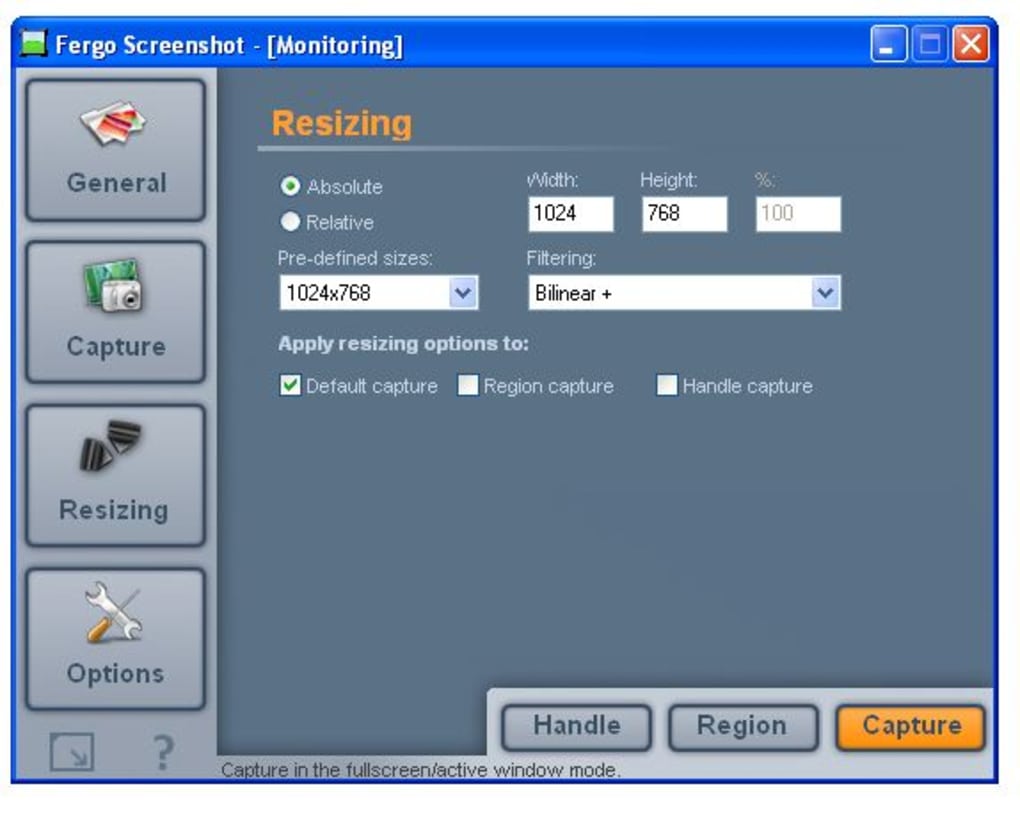
For advanced users, the settings panel allows you to adjust capture intervals, hotkey assignments, and skin preferences. While some changes (like skin updates) require a restart, the overall experience remains smooth and intuitive. Fergo Screenshot is designed to be used right away—no tutorials needed.
Compatibility and System Requirements
Fergo Screenshot is compatible with both major operating systems: Windows 7 and later (including Windows 10 and Windows 11), and macOS 10.12 or higher. This wide compatibility ensures that whether you're using a modern laptop or an older machine, you can enjoy a seamless screen capture experience.
The app is lightweight, consuming minimal system resources. It runs efficiently in the background without slowing down your computer. This makes it ideal for users with lower-end hardware or those who multitask frequently.
As a portable application, Fergo Screenshot doesn’t require admin rights to install or run. You can even run it from a USB drive, making it perfect for use on shared or public computers. This portability adds a layer of convenience and security—your capture tool goes wherever you go.
Additionally, the app supports multiple languages, including English, Spanish, French, German, and more, making it accessible to a global audience. Whether you're working from home, in a classroom, or on a business trip, Fergo Screenshot adapts to your environment.
Pros and Cons
- Pros:
- Completely free with no ads or trial limitations
- Supports full-screen, active window, and custom area captures
- Customizable hotkeys for quick access
- Automatic screenshot capture at user-defined intervals
- Auto-renames files to prevent duplicates
- Lightweight and fast performance
- Portable version available for USB use
- Available for both Windows and Mac
- Cons:
- Skin changes require a restart to apply
- Limited editing tools (no built-in annotation or cropping)
- No cloud sync or sharing features
- Basic interface—may feel too minimal for power users
- Only supports PNG and JPG formats
Frequently Asked Questions (FAQ)
-
Is Fergo Screenshot free to download and use?
Yes, Fergo Screenshot is completely free. There are no ads, no trial periods, and no hidden costs. You can download and use it indefinitely without limitations.
-
Can I use Fergo Screenshot on both Windows and Mac?
Absolutely. Fergo Screenshot is available for both Windows 7 and later and macOS 10.12 or higher, ensuring broad compatibility across devices.
-
Does Fergo Screenshot support automatic screenshot capture?
Yes, you can set the app to take screenshots automatically every few seconds. This is useful for monitoring system activity, creating time-lapse videos, or capturing dynamic content.
-
Can I customize the hotkeys for different capture modes?
Yes, you can assign custom hotkeys to each capture mode—full screen, active window, and area—directly from the settings menu.
-
Is Fergo Screenshot safe to download?
Yes, Fergo Screenshot is a secure, ad-free tool. It’s developed by a trusted team and regularly updated for security and performance. Always download from the official website to ensure authenticity.
Final Verdict: Why You Should Download Fergo Screenshot Today
Fergo Screenshot delivers exactly what a modern screen capture tool should: simplicity, speed, and reliability. With no strings attached, it’s one of the best free screen capture apps available. Whether you're documenting software bugs, creating study notes, or sharing quick updates, Fergo Screenshot makes the process effortless.
Its support for multiple capture modes, customizable hotkeys, and automatic capture features sets it apart from basic tools. While it lacks advanced editing features, its core purpose—capturing high-quality screenshots—is executed flawlessly.
For users who value privacy, speed, and a clean interface, Fergo Screenshot is a top choice. It’s secure, lightweight, and available for both Windows and Mac. If you're tired of bloated software with ads, this app is a breath of fresh air.
Download Fergo Screenshot now and experience the future of screen capturing—simple, free, and powerful.







